Face swap tool

Multiple face swap for photos, videos and GIFs

Use multiple face swap to replace different people in one photo, video or GIF.

Select up to four people

Choose who to replace

Choose a photo or clip

Use a clear photo or clip.

JPG · PNG · WEBP · GIF · MP4 · WEBM — up to 200 MB

Choose the new face

Use a sharp portrait with a similar face angle to your scene.

JPG · PNG · WEBP — up to 20 MB
Tips for a clearer swap
  • Face the camera directly, eyes open
  • Even lighting, no harsh shadows
  • No sunglasses or heavy occlusion
  • Use a sharp original photo
Choose your privacy modeStandard
Source—
New face—
PrivacyStandard
Cost10 coins

Accepted once per account and terms version. We record your account, time, IP address and browser details to document acceptance. See our privacy policy.

Uploading media…

Encrypted in transit · never used for training

A multi face swap needs a separate identity assignment for each selected person. Check the detected faces and test people entering, leaving or crossing in a video before rendering the full clip.
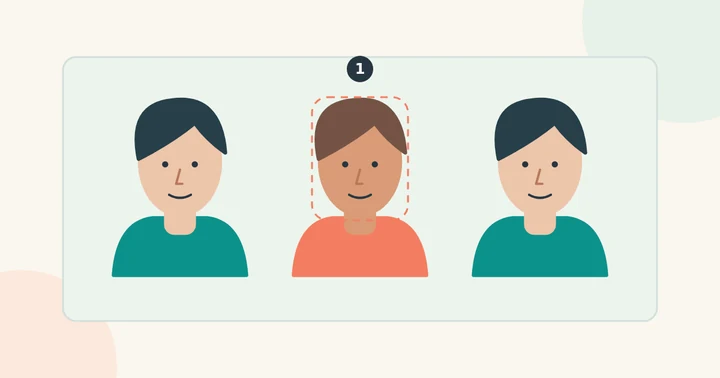
Three illustrated people with a dashed selection around the middle face.
Concept illustration. Identify the intended person before attempting an edit in a group photo.

Choose the people to replace

Upload the group scene and a clear replacement portrait. Detect the faces, then select the original person for the first assignment. Add a person for each different replacement, up to four. Leave people you want to keep out of the assignments.

Build a separate reference set for each person

Use 1–5 photos of the same replacement person and up to eight references of the original person per assignment. References can use different video frames. Start with Natural; compare Stable Video on a short moving clip. Previews cannot establish motion quality.

Preview, then review every face

Check the selected people in a free frame preview. For video or GIF, test a short moving clip before processing a longer file. Compare every person at full size, including bystanders who should stay unchanged. Preview success cannot guarantee every later frame will match correctly.

A batch face swap is a different job: processing several separate files. Multiple faces means several people within one image or clip.

Questions about multiple face swap for photos, videos and gifs

Can I replace every face with a different person?

Yes. You can give up to four original people different replacement identities. Each assignment has its own replacement portraits and references of the original person.

Can I swap two faces with each other?

Use two separate assignments and clear single-person portraits: assign A’s portrait to B’s selected face and B’s portrait to A’s face. Preview both identities before rendering. There is no automatic one-click exchange.

Can I select several people in a GIF?

Yes. Use the same person-selection controls for an animated GIF. The result is MP4; choose Export GIF for a GIF copy. Transparent areas become white.